

01
Match the framing
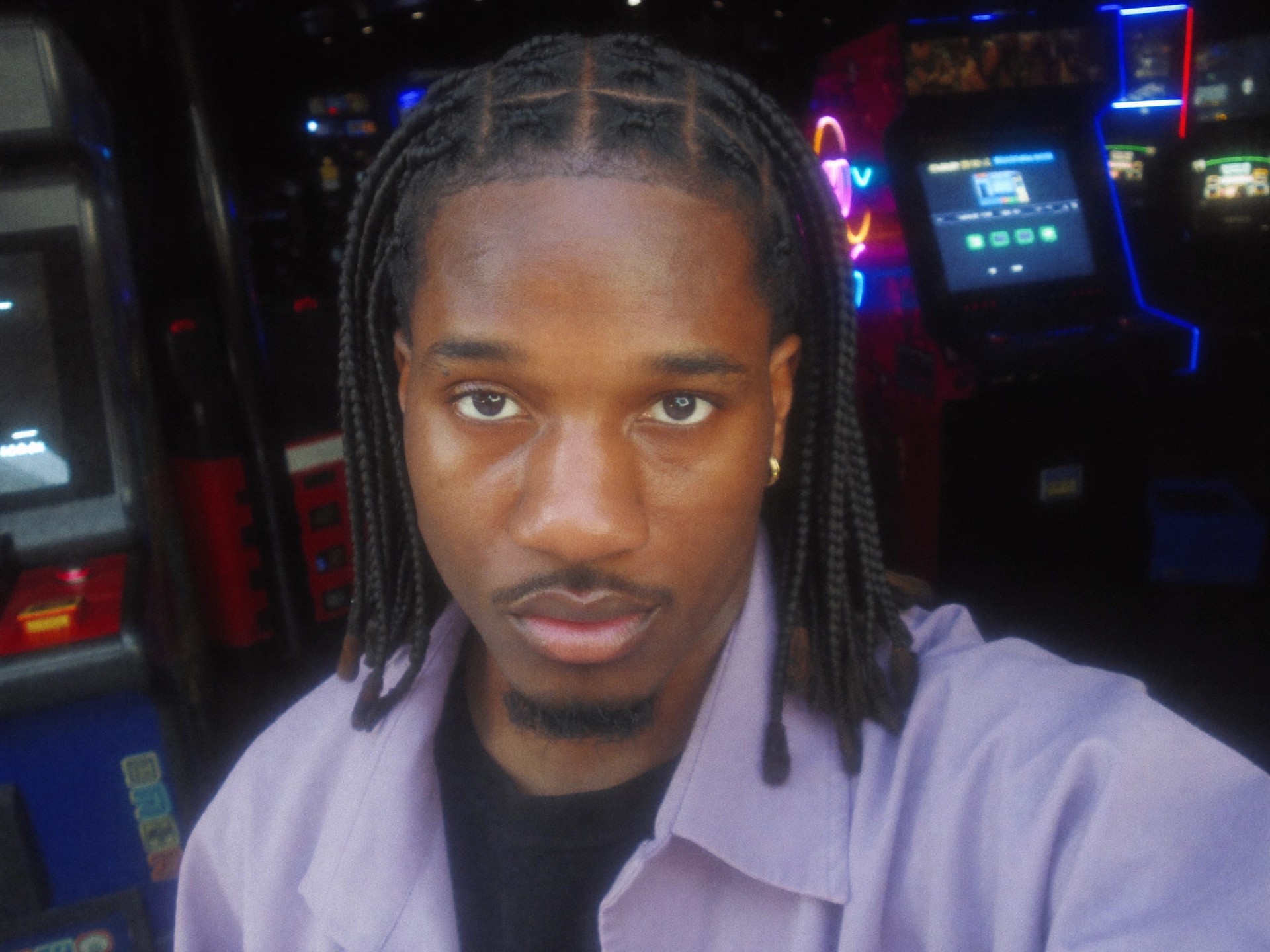
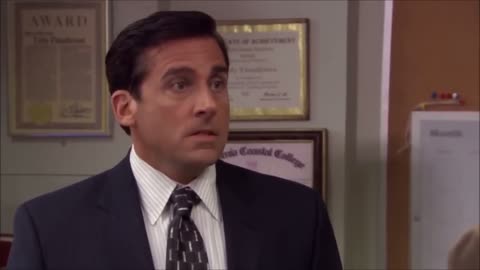
A portrait works well for a glance into a camera. A step, kick or full turn needs more of the body. Check the widest pose in the sample, including hands or feet at the edge of the frame.
Pick a performance, cast your photos and recreate the shot. Preview each effect to see its movement and the roles you can change.
Creations from this workspace appear here.
Preview a finished example, then open the effect to see the source performance and the roles you can cast.
A template pairs a prepared performance with specific roles for your photos. In this car assembly example, follow the same sequence from scattered parts to a complete vehicle. Switch between the source and recreation to see which details carry through. The workspace shows the model for each effect.
Pick the timing first, then choose who or what appears in the shot.
Step 1
Choose a scene with the kind of action you want. Play the preview through the ending before choosing Recreate. The selected template opens here with its reference and the roles you can replace.
Step 2
Read the label above each photo slot. In a group performance, the center, left and right roles can use different people. Start with the first required slot and follow the order shown. Optional roles can keep their original cast.
Step 3
Open Settings to inspect the choices available for this effect. Review the duration, resolution and credit estimate, then generate. Play the finished clip in My creations and check the full movement before downloading.
Start with the action you want the viewer to notice. These three details help narrow the template wall to a shot your photo can support.
01
A portrait works well for a glance into a camera. A step, kick or full turn needs more of the body. Check the widest pose in the sample, including hands or feet at the edge of the frame.
02
A scene can include bystanders as well as editable roles. Open the effect to see which people have photo slots. Keep one distinct subject in each image so the intended casting stays clear.
03
Some scenes build to a reveal in their final seconds. Play the reference for the mode you plan to use. A short cut and a full sequence can tell different stories even when they start from the same source.
Use the sample switcher to inspect the movement and framing before you choose a template for your own subject.
Follow the draw of a bow
01
Use a repeatable performance to compare two costume or character ideas. Keep the effect and quality settings fixed, change one photo, and look at the same moment in both clips.
02
Pick an effect designed for an animal, then use a photo taken near its eye level. A single pet against a quiet background makes ear, beak and paw movements easier to judge.
03
A reveal depends on the viewer recognizing both the opening shape and the final object. Choose a reference that shows the side of the subject you care about, then check the transition frame by frame.
Look at the role in the preview and match the distance and angle in your source photo. Use media you have permission to upload.
Show the parts of the body the chosen scene puts in motion. A hand cropped out of a dance photo gives the model little information when the dancer raises that arm.
Use
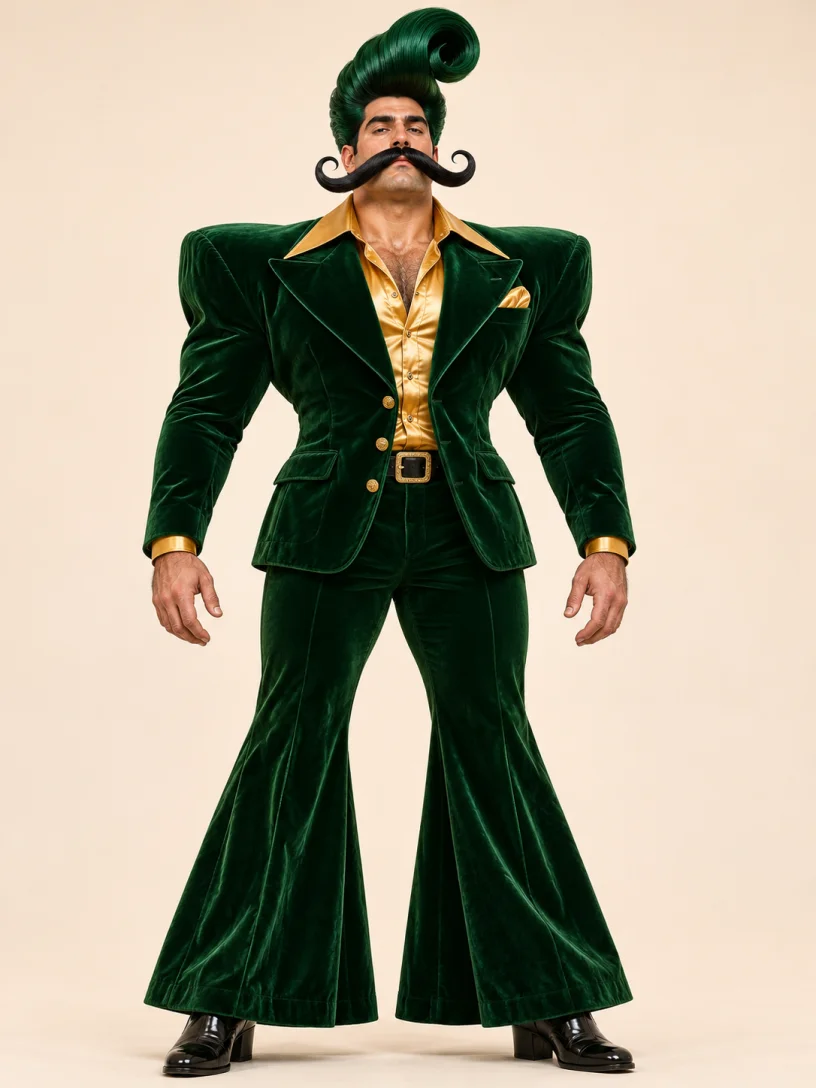
Avoid
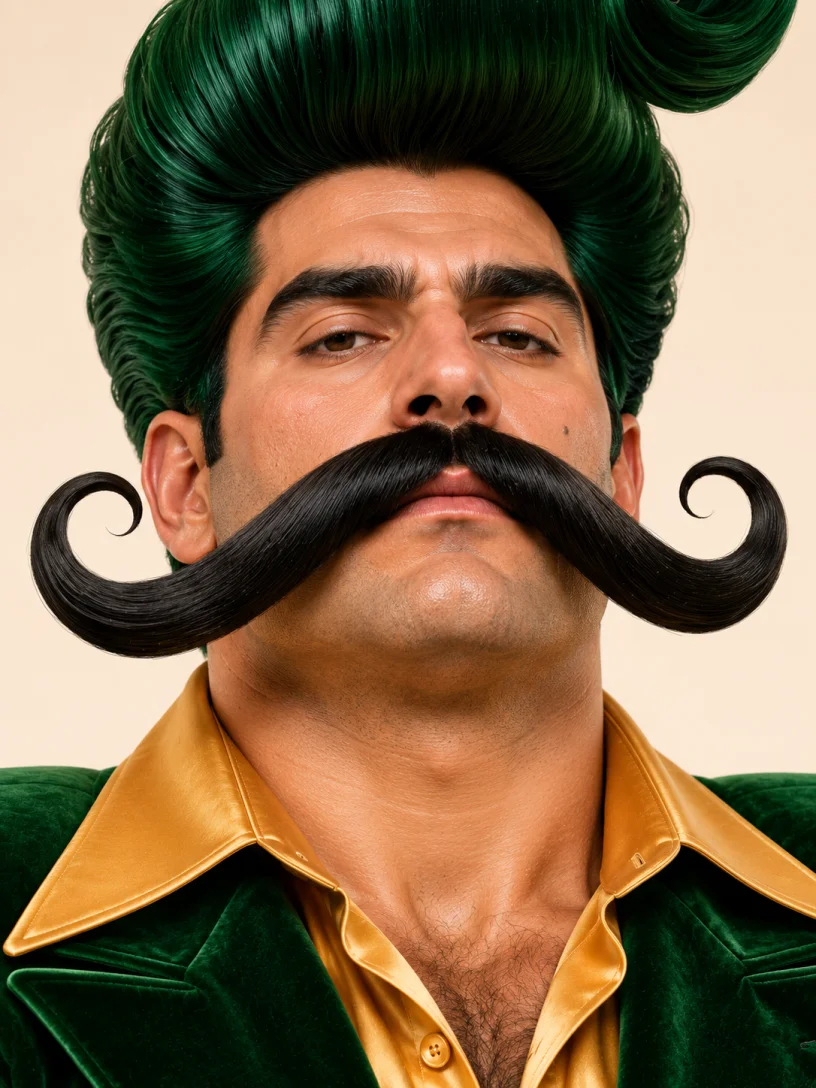
A clean silhouette matters most when the subject crosses the frame. If another person covers the lead for several beats, choose a different photo or a clearer motion reference.
Use
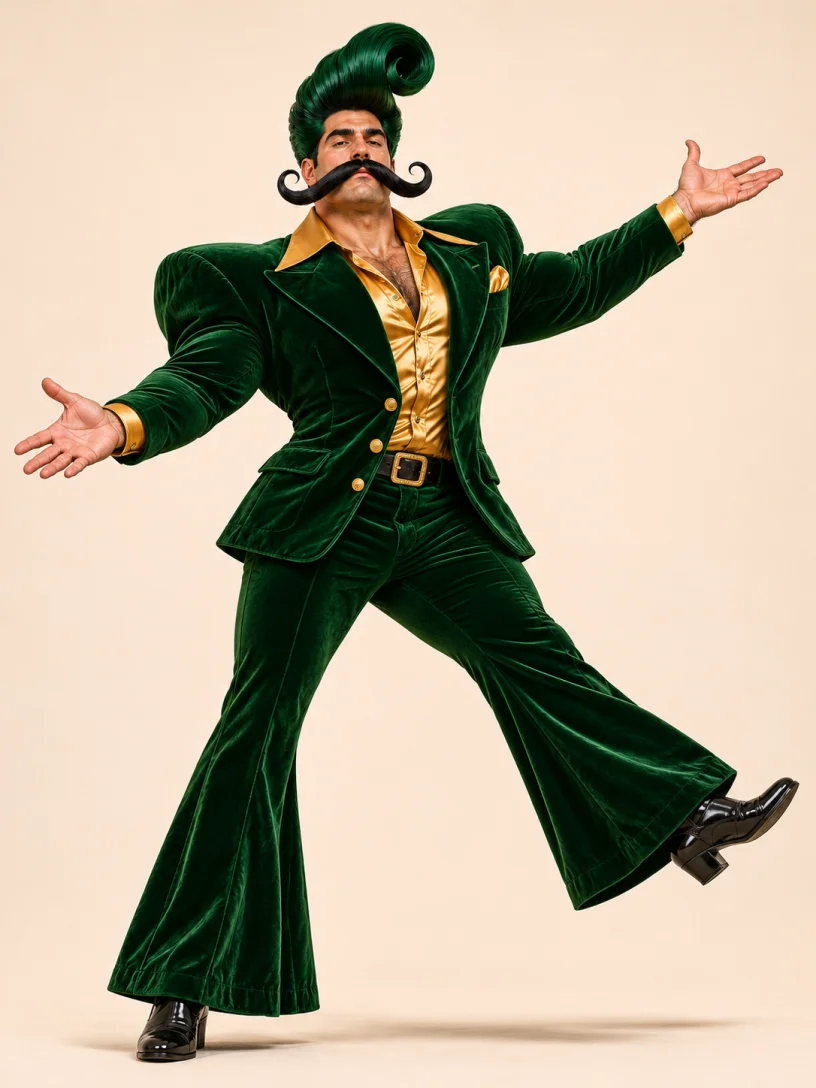
Avoid
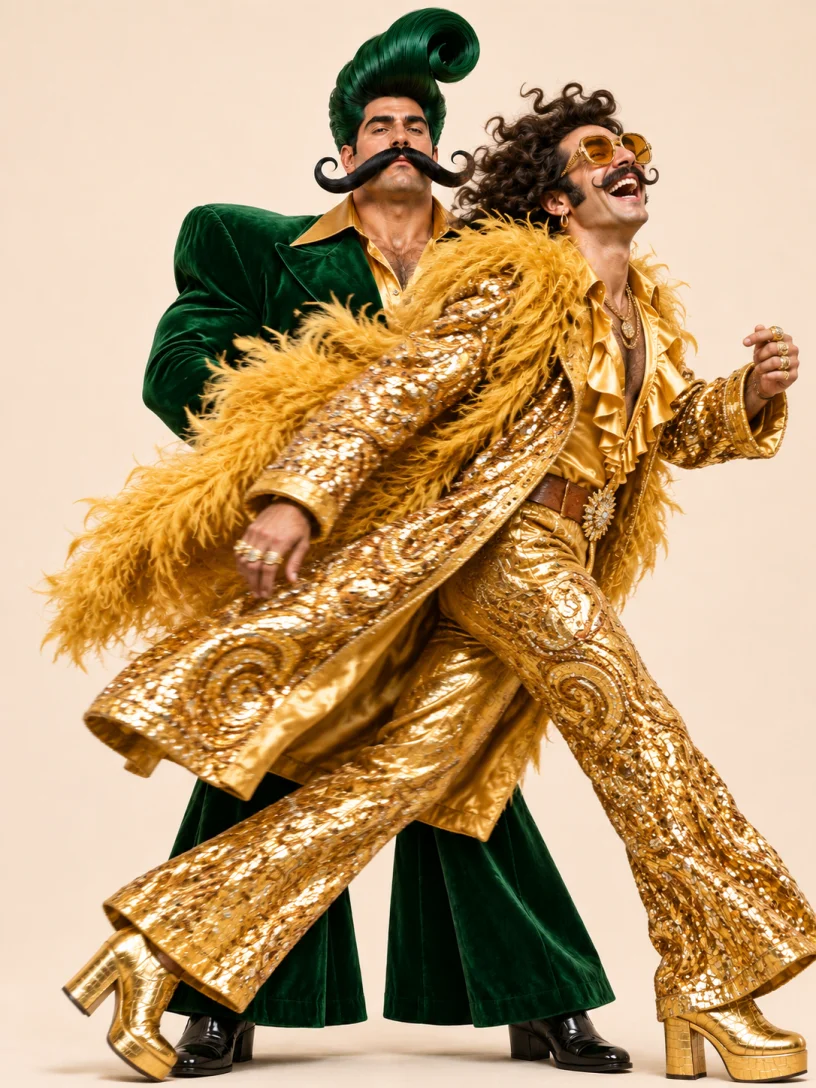
For a custom performance, use one continuous shot and check that the main subject remains visible. For a preset, the workspace supplies the prepared reference.
Compare the available plans, then check the estimate for your specific clip in the workspace.
For your first ideas.
$160.92 charged yearly
6,600 credits/year
Up to 1,100 images
Up to 366 videos
For a steady creative flow.
$383.04 charged yearly
18,000 credits/year
Up to 3,000 images
Up to 1,000 videos
For more creations, more often.
$671.16 charged yearly
38,400 credits/year
Up to 6,400 images
Up to 2,133 videos
Try before you subscribe
Prices in USD; taxes and total shown at checkout. Subscriptions renew automatically; cancel in Billing settings. Subscription credits expire each period; one-time credits never expire.
Refunds: request within 72 hours. Used purchased credits and applicable non-refundable processing costs (up to 6%) are deducted. Terms · Refund Policy
What to check before you submit a scene or return to a previous result.
The effect loads the model and reference settings registered for that template. Check the model shown in the form. To write an original scene using MAGI-2, open AI Video and select MAGI-2 there.
Each required photo corresponds to a role in the scene. A duet may need two people, while a vehicle effect may ask for a person and a car. The slot labels explain what belongs in each position.
Check the estimate in the active form after choosing the mode and resolution. Templates can have different durations and models, so two effects may have different estimates.
Choose Recreate, then copy the page address with its template parameter. Opening it selects the same effect. Your uploaded photos and private results stay in your own session or account.
Exit the selected template to return to the custom motion form. Choose a compatible model and add a motion clip and reference photos using the inputs shown there.
Open My creations while signed in to the account that submitted the job. Play the result through the final frame. When a result is ready, its actions let you download it or prepare another version.
Bring your photos to the template wall, preview the action and cast the roles in the same workspace.